The Quiet, Flickery, Laggy Bits: Five Projector Specs Worth Testing Before Your Returns Window Shuts
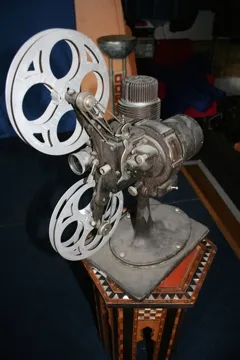
Photo: YellowFratello, CC BY-SA 4.0, via Wikimedia Commons
Projector deal pages are built around big numbers: 3,000 lumens, 4K support, 10% cashback, save £200. Those numbers are not useless, but they are not the whole story. The details that decide whether you enjoy a projector night after night are often buried in a spec table or left out entirely: fan noise, input lag, HDMI behaviour, keystone quality and how the lamp or laser dims.
The good news is that UK returns windows give you a chance to test these things at home, with your own sofa, your own walls and your own sources. The bad news is that cashback claim deadlines can be tight, so it pays to know what to test first. Treat the first week as your own review lab, not just a delivery to sign for.
Why the small print beats the sticker
A projector can have impressive headline lumens and still be annoying. It can support HDR on paper and still throw a black screen every time you switch from a streaming stick to a console. It can offer keystone correction and still make small text look like it has been through a washing machine. Cashback does not fix any of that.
Specs-first buying means asking what the number actually measures. Is the dB rating taken in eco mode at one metre? Is the input-lag figure only available in game mode at 1080p? Does HDR mean it accepts the signal, or that it tone-maps it sensibly? Those distinctions matter more in a small UK living room than a glossy brochure suggests.
1. Fan noise: the dB figure and the sofa test
Projector fan noise is usually quoted in decibels, often in eco mode and often from a metre away. In a real room you might sit two and a half to three metres from the lens, and you might use normal or bright mode for daytime sport. The pitch matters as much as the volume — a low hum is easier to live with than a high whine.
Test it with a dialogue-heavy scene at your normal volume. Then mute the projector and listen from your seat. Switch between eco and bright modes. A phone sound-meter app is not calibrated, so do not treat the absolute number as gospel; use it to compare modes and sources. If the fan is distracting during quiet scenes, no cashback percentage will make you forget it.
2. Input lag: the stopwatch test
Input lag is the delay between a button press and the picture changing. It matters for gaming and, to a lesser extent, for sports and fast panning. Spec sheets often quote a low figure that applies only in game mode, at a particular resolution, with certain processing switched off.
If you game, connect a console or PC and try the same quick-action sequence in game mode and standard mode. Use a slow-motion phone video if you want a rough visual comparison, or an online lag-test pattern if your setup allows it. Check 4K and 1080p separately. If the difference between modes is huge, decide whether you can live with the softer picture or the extra delay. If you mostly watch films, this is a lower priority — but it is still worth a quick check.
3. HDR and HDMI handshakes: the source-switching test
HDR support on a spec sheet can mean different things. The projector may accept an HDR10 signal but roll it off so aggressively that bright scenes look flat. It may support HDR at 60Hz on one input but not another. HDMI handshakes are the unglamorous part: the projector and source agreeing on resolution, frame rate, colour format and HDR metadata.
Test with every source you actually own — streaming stick, games console, set-top box, laptop. Switch inputs repeatedly and watch for black screens, flicker, washed-out colours or a slow renegotiation every time. Play a dark film scene and a bright sports clip. If the projector drops to SDR without telling you, or if you have to power-cycle the source to get a picture, that is a return-window issue, not a firmware mystery to live with.
4. Keystone correction: the grid test
Keystone correction fixes a skewed image when the projector is not perfectly centred. Digital keystone can also soften the picture, reduce brightness and add processing delay, especially when you use aggressive vertical and horizontal correction. Auto-keystone can be convenient, but convenience is not the same as quality.
Display a grid pattern or a text document from a laptop. Use the keystone controls, including corner correction if available, and then check focus across the whole screen. Look at small text near the edges and corners. If the centre is sharp but the edges are fuzzy, or if straight lines wobble, you may need to move the projector rather than rely on correction. In a UK room with a low ceiling or an awkward chimney breast, placement often beats processing.
5. Lamp or laser dimming: the fade test
Lamp projectors dim over time, and many have eco modes that change brightness and fan behaviour. Laser projectors may use dynamic dimming or a dynamic iris to improve black levels, which can be effective but sometimes visible as pumping. The spec sheet rarely tells you how smooth or aggressive that behaviour is.
Watch a dark scene with bright subtitles or a credits sequence over black. Look for the image brightening and dimming as the white text appears and disappears. Switch between eco and normal modes and listen for the fan changing pitch. If you are buying a lamp model, check the rated lamp life and the cost of a replacement; if you are buying laser, check whether the dimming behaviour is distracting in the scenes you watch most.
The returns-window routine
Keep the boxes and packaging until you are sure. Run the tests in the first few days, using the sources and seating position you will actually use. Write down the serial number and check it against the invoice. Note the cashback claim deadline, but do not let it rush you into keeping a projector that fails the basics. If you claim cashback and then return the item, the promotion may be reversed, so test first and claim when you are confident.
A specs-first deal is not the one with the biggest lumen number or the fattest cashback badge. It is the one that stays quiet during dialogue, switches inputs without drama, keeps text sharp and does not distract you with flicker or fan noise. Use your returns window to check those things, and the headline numbers can go back to being what they are: a starting point, not a verdict.